Coming Soon: Hanging Protocols – Advanced Viewports & Smarter Series Matching
Overview
Hanging Protocols in the OmegaAI Image Viewer now go well beyond flat 2D stacks. This release adds MPR, rotating PET MIP, and PET-CT fusion viewports; smarter, metadata-driven series matching; and four new default protocols built around them.
What's New
1. MPR, Rotating PET MIP & PET-CT Fusion Viewports
What changed:
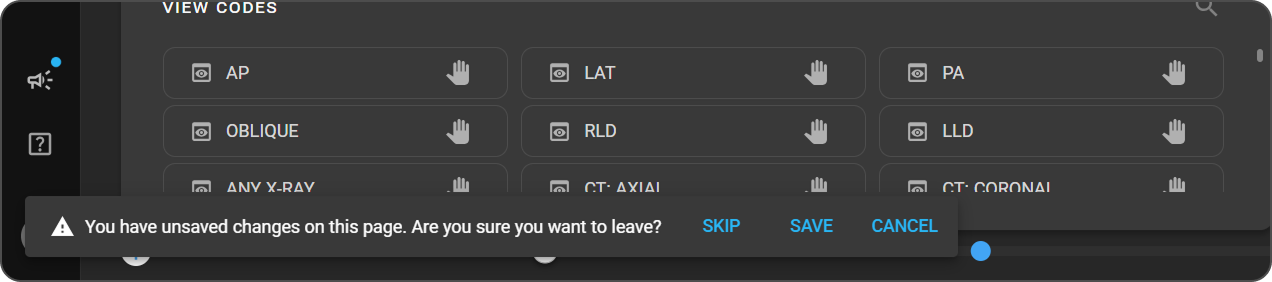
Hanging Protocol viewports are no longer limited to a flat 2D stack. Seven new view codes let a viewport open directly into an advanced view as soon as a study loads, with no manual setup:
- CT: MPR Axial / Coronal / Sagittal — builds a multiplanar reconstruction from the thinnest axial CT series in the chosen plane. Even an axial-only CT can open as coronal or sagittal.
- PT: PET 3D MIP — a rotating whole-body PET projection, built automatically from the attenuation-corrected PET series.
- PET-CT: Fusion Axial / Sagittal / Coronal — PET overlaid on CT in the chosen plane, using the PET display preset's colormap.
Slab thickness and projection (Maximum, Average, or Minimum Intensity) can be saved for each MPR and fusion viewport, so the viewport opens exactly as configured. If a study can't support one of these views, the viewport shows the best available 2D series instead of going blank — for fusion, it shows CT alone with a "Fusion unavailable" indicator.
Benefit:
Radiologists land on the right multiplanar or fused view automatically — no manual reconstruction or series hunting required.
2. Display Presets for Every Modality
What changed:
Each viewport's rules now include a single Display Preset picker, listing the presets available for that viewport's modality — CT, MR, US, PT, NM, and more, not just PET as before. Selecting a preset applies its window level and, where configured, its colormap and auto-windowing behavior together.
Benefit:
Consistent, clinically correct windowing and colormaps on open, authored once and reused across every protocol.
3. Smarter, Metadata-Driven Series Matching
What changed:
Viewport matching rules can now weigh study details beyond modality and body part — slice thickness, study description, and dozens of other fields — with numeric and multi-value comparisons. Each rule can be a strict requirement or just a preference, so OmegaAI still hangs the best available series rather than leaving a viewport empty.
Benefit:
Protocols can express real clinical preferences — like favoring a primary-read series over a thin reconstruction — without ever risking a blank viewport.
4. Four New Default Hanging Protocols for PET, PET-CT, and MPR
What changed:
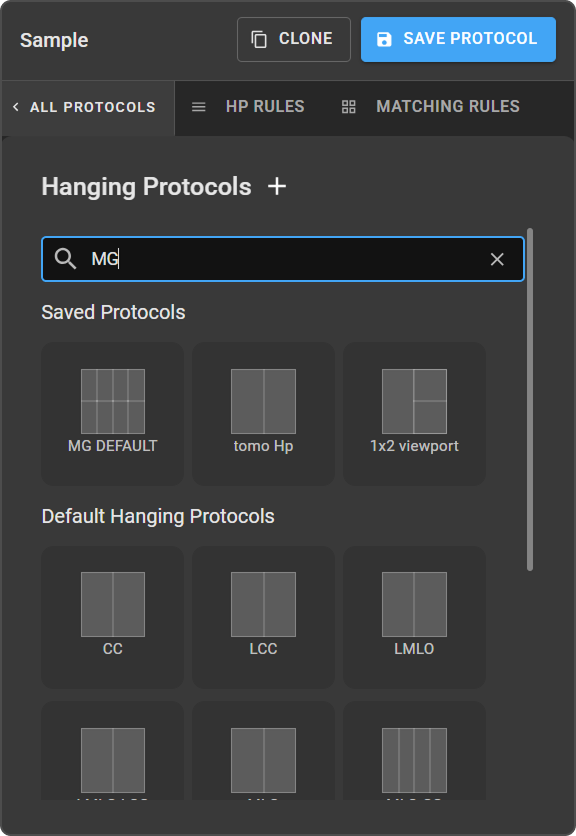
OmegaAI's Default Hanging Protocol catalog adds four new protocols: PET Default, PET-CT Default, PET-CT Quick Read, and MPR Default, each built around the new viewport types above. PET and PET-CT cells apply a clinically standard SUV-scaled colormap, and fall back safely with a clear indicator when a study's data can't support SUV scaling.
Benefit:
PET, PET-CT, and MPR-heavy workflows get a clinically reviewed, ready-to-use starting protocol out of the box.
Important Notes
- Backward compatible: Existing protocols behave exactly as before, with no impact on studies that don't use the new viewport types.
- Series matching: A condition on a metadata field that doesn't apply to the bound series simply never matches — it doesn't cause an error.
- SUV safety fallback: A "SUV unavailable" indicator with hidden SUV stats is expected behavior when a study's DICOM metadata can't support SUV calculation — it isn't an error.
Where to Find It
- MPR, PET 3D MIP & Fusion view codes: Hanging Protocol Configuration → View Codes panel → drag
CT: MPR Axial/Coronal/Sagittal,PT: PET 3D MIP, orPET-CT: Fusion Axial/Sagittal/Coronalonto a viewport - Display Presets & series matching: Hanging Protocol Configuration → select a viewport → HP Rules tab
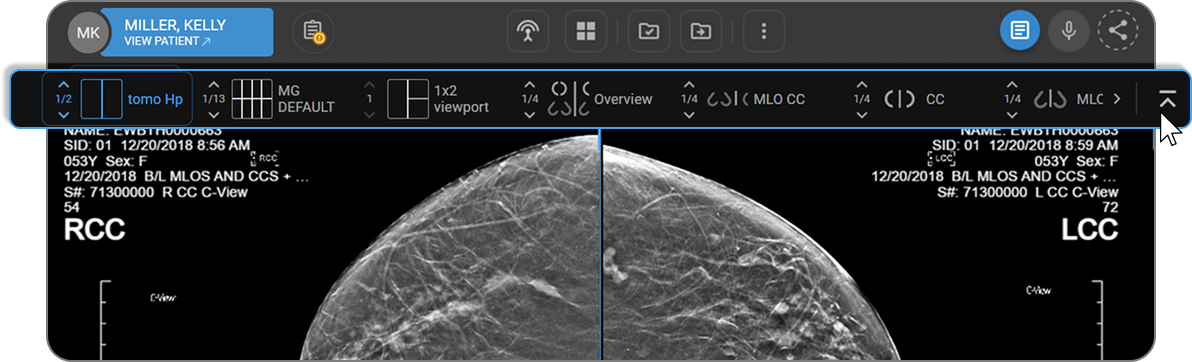
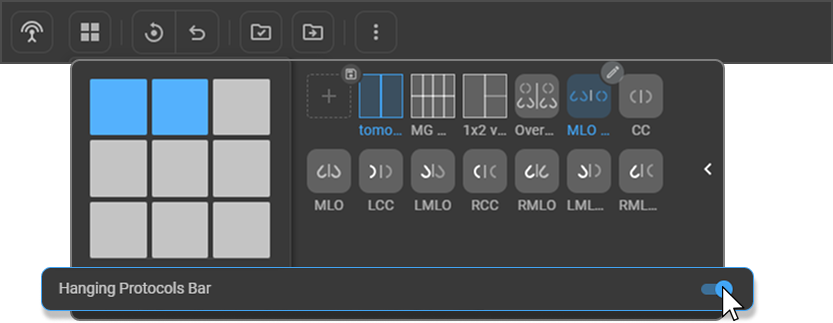
- New Default protocols: Image Viewer → Quick Access Strip or Layout Panel → PET Default / PET-CT Default / PET-CT Quick Read / MPR Default