Ir al contenido principal

5 publicaciones etiquetados con «release notes»

Ver todas las etiquetas

Product Update: User Type Management

· 3 minutos de lectura

Overview

This release introduces enhancements to User Type Management in OmegaAI to improve usability, administrative efficiency, and system consistency. With this update, User Types are no longer assigned directly on the User page; they are now managed through Roles, enabling centralised configuration and simplified user administration.

What's New

1. User Types Managed Through Roles

What changed:

User Types are now configured at the Role level instead of being assigned individually on the User page. The User Type mapped to each role can be viewed and updated by editing that role directly under Users & Roles → Roles.

Benefit:

This centralizes permission management and ensures consistent User Type configuration across all users assigned to the same role.

2. Simplified User Administration

What changed:

User management is now role-driven. When a Role is assigned to a user, the corresponding User Type configuration is automatically applied.

Benefit:

This simplifies user administration by reducing manual setup and ensuring that users receive the correct permissions based on their assigned role.

3. Streamlined User Page

What changed:

The User Page no longer displays or allows editing of User Type fields. User configuration is now managed entirely through Roles.

Benefit:

This provides a cleaner interface and reinforces a role-based approach to managing user permissions.

4. Automatic Migration for Existing Users

What changed:

Existing users are automatically migrated to the new role-based structure. Their current User Type settings are mapped to corresponding Roles during the migration process.

Benefit:

Ensures a smooth transition to the new system without requiring manual updates to existing user accounts.

Important Notes

  • During migration, additional roles may be created automatically if duplicate User Type configurations existed. These roles may include suffixes such as "-1" or "-2."
  • Administrators should review these roles and remove or consolidate duplicates if necessary.
  • All future User Type management must be performed through Role configuration, not through the User page. To update the User Type on an existing role, select Edit on the role under Users & Roles → Roles.

Where to Find It

Roles (view and manage User Types per role): Organizations (left navigation) → select the organization → Details → Users & Roles → Roles

Add a user and assign a role: Organizations (left navigation) → select the organization → Details → Users & Roles → Users

Watch It in Action

Updated Help Articles

Add User Help

Product Update: RIS Procedure Codes & Order Sets

· 2 minutos de lectura

Overview

This release introduces enhancements to RIS Procedure Codes and Order Sets in OmegaAI, aimed at improving usability, simplifying management, and maintaining data integrity across scheduling and study workflows.

What’s New

1. Improved Interface for Procedure Codes and Order Sets

What changed:

The Procedure Codes and Order Sets pages have been redesigned with a cleaner and more intuitive layout for easier navigation and configuration.

Benefit:

Users can locate and manage procedure configurations more efficiently, reducing the time required for daily administrative tasks.

2. Simplified Management

What changed:

Users can now easily create, edit, and filter Procedure Codes and Order Sets directly from the RIS Settings interface.

Benefit:

This improves workflow efficiency and simplifies management of frequently used procedure configurations.

3. Safeguards for In-Use Items

What changed:

Procedure Codes or Order Sets that are already associated with existing studies cannot be deleted.

Benefit:

This safeguard prevents accidental data loss while allowing administrators to deactivate items that are no longer required.

Important Notes

  • Procedure Codes or Order Sets currently used in studies cannot be removed.
  • Administrators can deactivate them instead to maintain data integrity.

Where to Find It

Navigation path in the application:

Admin → Organization → Open Organization → RIS → Procedure Codes / Order Sets

Use these sections to create, edit, and manage Procedure Codes and Order Sets for the selected organization.

Updated Help Articles

These improvements make managing procedure codes and order sets more reliable and user-friendly, helping you maintain accurate and consistent study data.

Product Update: Scheduler Enhancements

· 2 minutos de lectura

Overview

This release introduces enhancements to the OmegaAI Scheduler, focused on improving scheduling accuracy, usability, and workflow efficiency.

What’s New

1. Time Display During Drag and Drop

What changed:

When dragging a study from the worklist to the scheduler, the exact time slot is displayed within each cell.

Benefit:

This provides clearer visibility when selecting appointment times and reduces scheduling errors.

2. Modality Mismatch Indicator

What changed:

A validation indicator appears when there is a mismatch between the study modality and the healthcare service modality.

Benefit:

This helps prevent incorrect scheduling and ensures studies are assigned to appropriate services.

3. Customizable Scheduler Time Intervals

What changed:

Scheduler intervals can now be configured to 5, 10, 15, or 30 minutes, providing greater flexibility to match scheduling needs.

Benefit:

Administrators can adjust scheduling intervals to match clinical workflow requirements.

4. Quick View Options

What changed:

Users can quickly switch between Day, Week, and Month views directly from the scheduler interface.

Benefit:

This improves visibility and allows faster navigation between scheduling views.

5. Reorder Healthcare Services with Drag and Drop

What changed:

Healthcare services can now be reordered using drag-and-drop within the scheduler.

Benefit:

Users can personalize the scheduler layout for easier access to frequently used services.

Important Notes

  • These enhancements will be rolled out within one week of the release.

Where to Find It

Main Navigation → Calendar (right-side navigation bar)

Click the Calendar icon to open the Scheduler, where you can view and manage appointments, resources, and healthcare services.

Updated Help Articles

log in here

Product Update: Self-Scheduling with Order Set Selection

· 2 minutos de lectura

Overview

This release introduces updates to Self-Scheduling in Blume to improve usability, efficiency, and system reliability. Patients can now directly book appointments from Blume using integrated Order Set Selection.

What’s New

1. Self-Scheduling with Order Set Selection

What changed:

Patients can now book appointments by selecting the appropriate Order Set directly within Blume, aligning with the existing self-scheduling workflow.

Benefit:

Simplifies the booking process and ensures patients select the correct procedures, improving scheduling accuracy and reducing manual intervention.

Step 1:

Self Scheduling Orderset Selection

Step 2:

Document Upload and Integrated Forms

2. Customizable Order Sets for Imaging Centres

What changed:

Imaging centers can fully customize order sets, defining available healthcare resources, specific naming conventions, and self-scheduling capabilities tailored to their individual practice needs.

Benefit:

Provides flexibility to tailor scheduling workflows based on organizational needs, improving control and operational efficiency.

3. Organization Auto-Fill for Returning Patients

What changed:

If a patient has previously booked an appointment, the associated organization details are automatically pre-filled during scheduling.

Benefit:

Reduces repetitive data entry and speeds up the appointment booking process for returning patients.

Important Notes

  • Order Set availability for self-scheduling depends on the configuration by the imaging centre
  • Patients can only select from configured and enabled Order Sets
  • Patient Document Upload: Patients can continue to upload required documents (e.g., physician orders) within Blume; these remain accessible to imaging centres for review
  • Integrated Patient Forms: Imaging centres can continue to enable forms for patients during the appointment request process to ensure complete and accurate information collection

Where to Find It

Navigation path in the application: Blume Patient Portal → Search Imaging Procedure → Request New Appointment

Updated Help Articles

Search Imaging Procedure & Requesting New Appointment.

Actualización del producto: Desencadenador «Informe firmado» en la automatización de flujos de trabajo (WFA)

· 2 minutos de lectura

Descripción general

Nos complace anunciar el activador «Informe firmado», incluido en el tipo de activador «Operaciones» de la automatización de flujos de trabajo (WFA). Este nuevo activador automatiza las acciones posteriores al informe (por ejemplo, la distribución o las notificaciones) inmediatamente después de que se finalice un informe de diagnóstico, lo que elimina de forma efectiva los retrasos causados por el procesamiento asíncrono de DICOM. Esto mejora principalmente la asistencia a los clientes que utilizan soluciones de generación de informes externas, al tiempo que añade un control más detallado sobre otros escenarios de creación de informes.
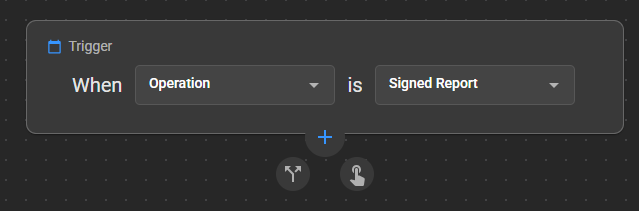
Desencadenador «Informe firmado»

Novedades

Escenarios de activación del desencadenador

Qué ha cambiado:

El activador Informe firmado puede activarse cuando se produzca cualquiera de las siguientes situaciones:

  1. Se carga un informe diagnóstico como informe definitivo a través de la interfaz gráfica de usuario del visor de documentos (DV).
  2. Se recibe un informe en OmegaAI a través de integraciones HL7 o FHIR.
  3. Se incorpora un informe estructurado mediante incorporación DICOM a través de enlace a OmegaAI.
  4. Se importa un informe final (encapsulado en DICOM) utilizando la función de importación.
  5. Se crea o guarda un informe final en el Visor de documentos (DV) de OmegaAI, incluidas las enmiendas firmadas.

> Nota: Asegúrese de añadir las condiciones adecuadas después del desencadenante para evitar que se active la firma final cuando no sea necesario.

Ventaja:

La automatización de flujos de trabajo le permite automatizar procesos y tareas, lo que aumenta la eficiencia y reduce la intervención manual. Con el desencadenador de informe firmado, damos un paso más hacia la optimización de su flujo de trabajo de generación de informes.

Notas importantes

• Se recomienda configurar las condiciones adecuadas con el desencadenador para evitar una ejecución involuntaria • La ejecución del flujo de trabajo original depende de los eventos de finalización de los informes en todos los métodos de ingesta compatibles • Resulta especialmente beneficioso para entornos que utilizan soluciones de generación de informes externas • Asegúrese de que las condiciones estén configuradas para evitar la activación innecesaria del desencadenador

Dónde encontrarlo

Ruta de navegación en la aplicación:

Organización → Detalles → Automatización de flujos de trabajo → Crear/Editar flujo de trabajo → Tipo de activador: Operaciones → Informe firmado

Artículos de ayuda actualizados

Automatización de flujos de trabajo.