Sign Delay
Overview
The Sign Delay feature in the Document Viewer gives radiologists and reading physicians a brief window of time to review and, if needed, undo a signed report before the signature is finalized. This helps catch any last-minute changes without disrupting the overall signing workflow.
During the delay period, the report remains in a "Pending Signature" state. Only the radiologist or physician who signed the report can make edits during this time. Once the delay period expires, the signature is permanently applied.
Sign Delay is enabled by default for all organizations, including existing users and new users. The default delay duration is 2 minutes.
Availability
Sign Delay is currently available in the Document Viewer. Support for other Document Viewers such as MD AI is coming soon.
How It Works
Every report goes through sign delay queue when it is signed. When a report is signed, a countdown timer begins based on the sign delay duration configured for your organization.
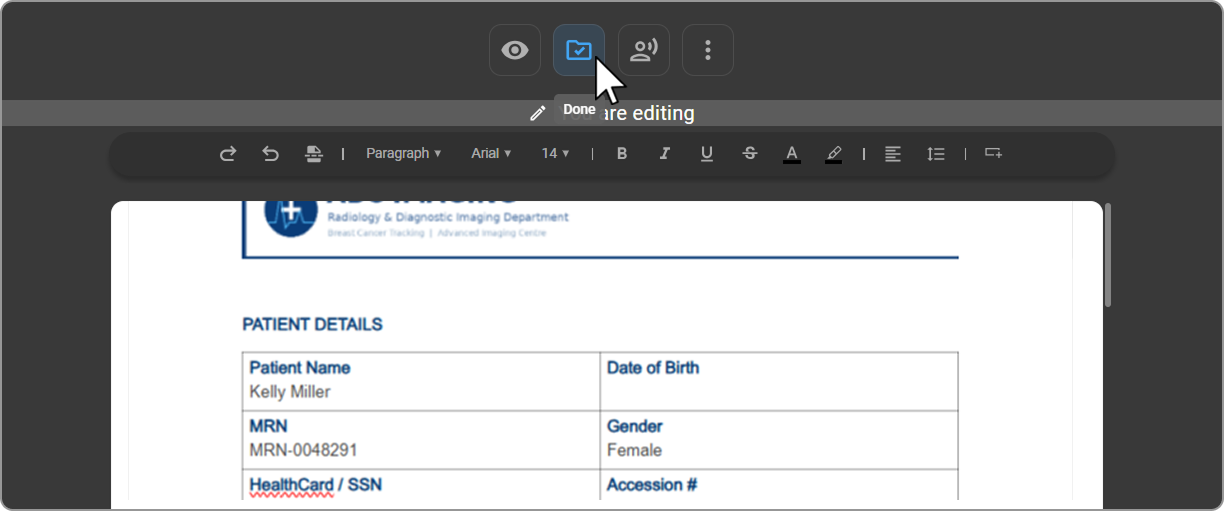
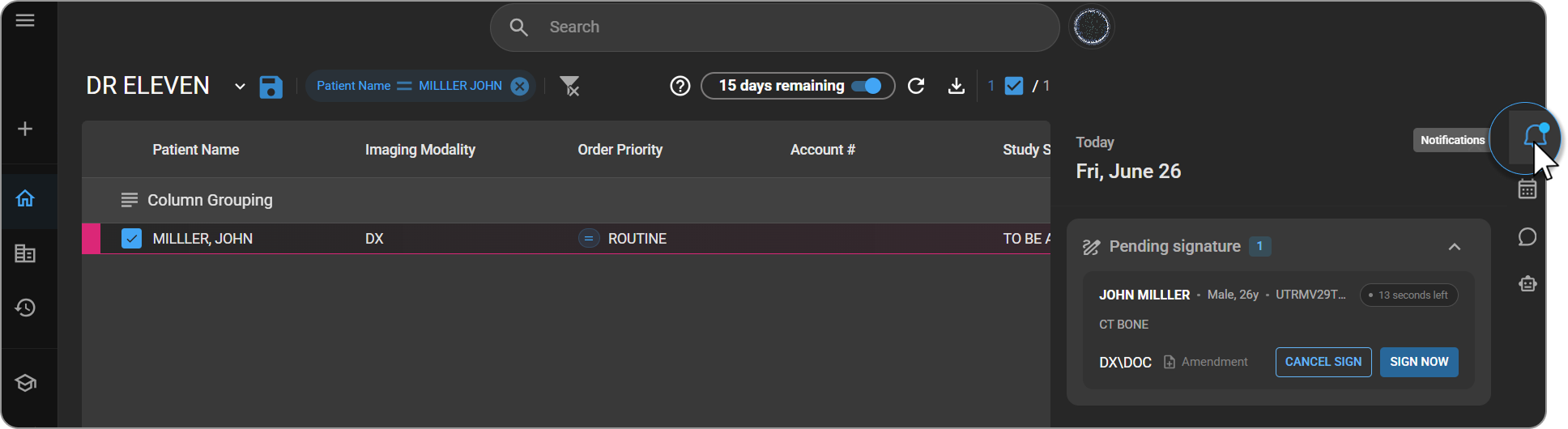
The default delay is 2 minutes. You are not notified automatically; to find a pending signature, open the bell (notification) icon, where the report is pinned at the top along with the actions you can take. The countdown appears in two places:
-
The Pending Signatures panel, accessed via the bell (notification) icon, shows the report pinned at the top along with a live countdown timer.
-
A banner appears at the top of the report viewport, also displaying the countdown in real time (e.g., 01:59 counting down to 00:00).
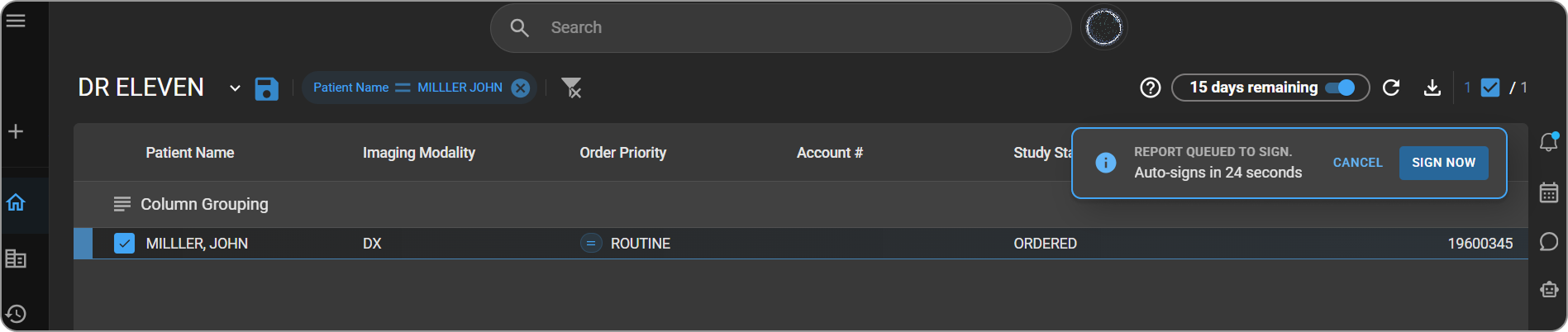
During this period:
- Only the user who signed the report can edit or cancel it.
- Other users in the system cannot modify the report during this window.
- Once the timer reaches zero, the signature is permanently finalized.
| Setting | Value |
|---|---|
| Default | 2 minutes |
| Minimum | 0.5 minutes (30 seconds) |
| Maximum | 15 minutes |
| Increment | 0.5-minute steps (0.5, 1, 1.5, 2 …) |
| Value of 0 / "no delay" | Not allowed — turn the feature off to disable sign delay |
Pending Signatures Panel
After signing a report, open the bell (notification) icon to access the Pending Signatures panel, where the report is pinned at the top. This panel:
- Lists all reports currently in a sign delay state, displayed as Accession: Patient Name.
- Shows a live countdown timer for each report indicating how much time remains before the signature is finalized.
- Provides an Undo button to cancel the pending signature for a report.
- Provides a View button to open the report directly in the Document Viewer.
You can also access the Pending Signatures panel from the Worklist without opening the Document Viewer, making it easy to undo a signature even after navigating away from the report.
If there is more than one report in a pending-signature state, all of them will be listed in this panel, each with its own countdown.
Undoing a Signed Report
If you need to make changes after signing, you can undo the signature within the sign delay window. Use the Undo button from either of these locations:
- The Pending Signatures panel — available from both the Worklist and the Document Viewer.
- The banner at the top of the report viewport, while the report is open.
After selecting Undo, the report returns to an editable (unsigned) state. Make the necessary changes, then sign the report again.
When you re-sign after an undo, the countdown restarts from the full delay duration, so you get a completely fresh window, not just the time that was remaining. The Undo option is available to the signing user only and expires once the delay period ends.
Signing Immediately (Sign Now)
If you do not need the delay period and want to finalize the report right away, use the Sign Now button. This is available both in the Pending Signatures panel and within the report viewport. Selecting Sign Now bypasses the remaining delay and permanently applies the signature immediately.
Once Sign Now is used, the Undo option is no longer available for that report.
For Administrators: Configuring Sign Delay
The sign delay feature is enabled for all organizations. As an administrator, you can adjust the delay duration or turn the feature off entirely through Organization Settings.
To configure Sign Delay:
- From the OmegaAI home-screen, select your organization.
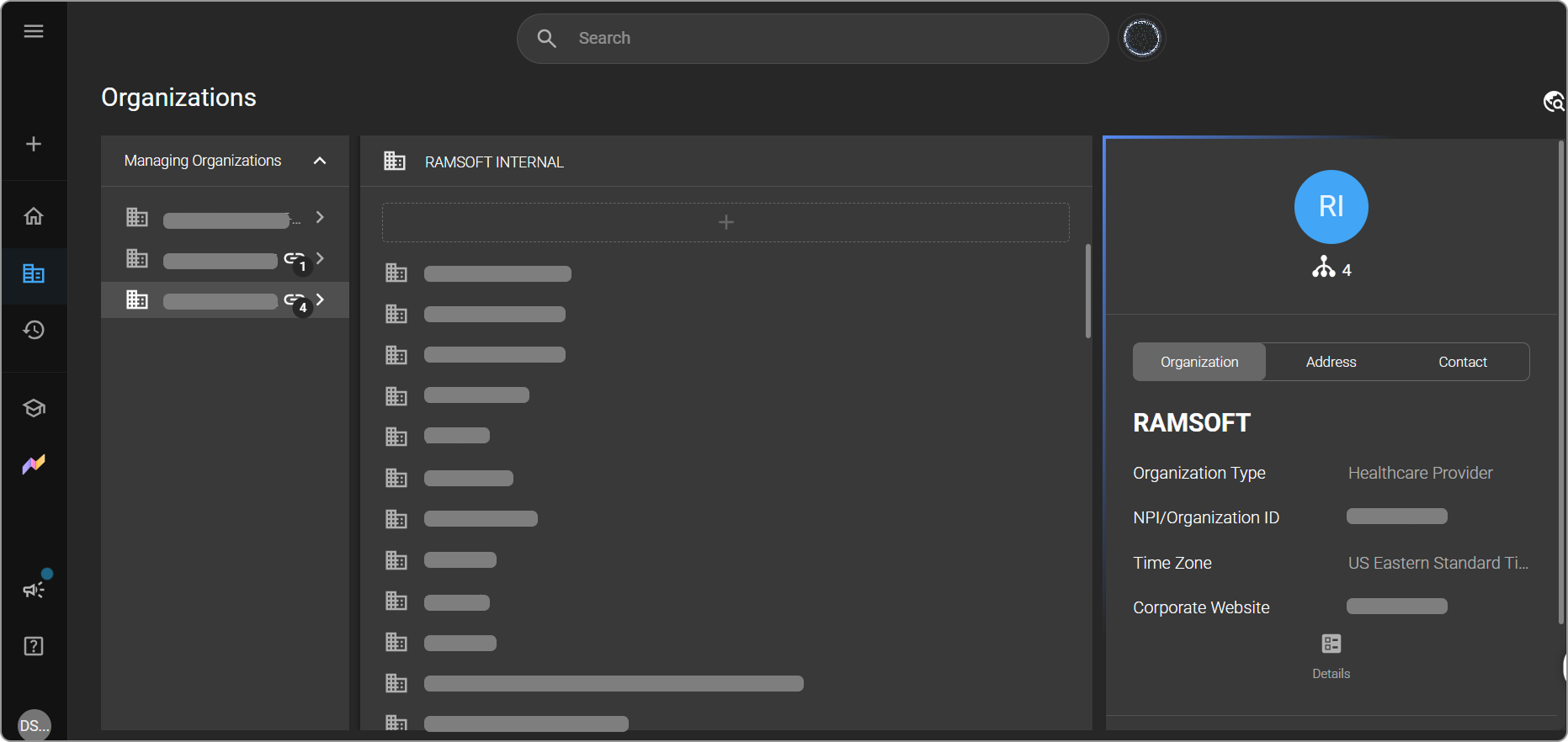
-
Go to the Details. A panel opens on the left with optipns including General, Users and Roles and others.
-
Scroll down to Workflow Steps
-
On the canvas, locate the Settings button at the top and click it.
-
Find the Sign Delay toggle. The toggle is on by default.
-
Adjust the delay duration (default:2mins) as needed or turn the toggle off to disable the feature.
-
The valid range is 0.5 to 15 minutes, in 0.5-minute increments (for example, 0.5, 1, 1.5, 2, and so on).
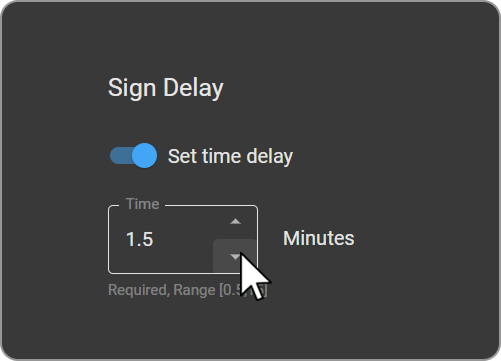
- Save your changes. The configured duration will apply to all subsequent signed reports in your organization.
| Setting | Value |
|---|---|
| Default | 2 minutes |
| Minimum | 0.5 minutes (30 seconds) |
| Maximum | 15 minutes |
| Increment | 0.5-minute steps (0.5, 1, 1.5, 2 …) |
| Value of 0 / "no delay" | Not allowed — turn the feature off to disable sign delay |
To disable Sign Delay for your organization, turn the toggle off in Organization Settings.
If a report fails to sign, you will be notified and can retry or cancel.
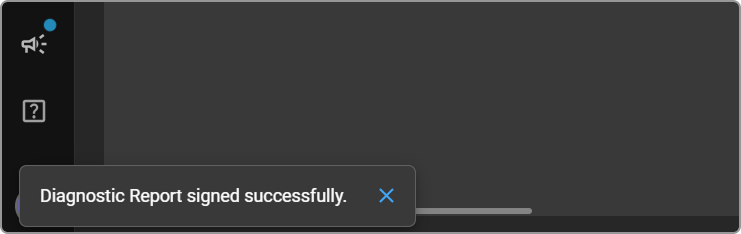
If a signing attempt fails, a failure notification appears: "Diagnostic report sign failed. Retry signing." Select Go to Queue to access the failed report.
In the Pending Signatures panel, the failed report displays an error message: "Report could not be signed. Sign now to try again, or cancel signing." You have two options:
Sign Now Immediately finalize the signature without waiting for the remainder of the sign delay period. Selecting Sign Now permanently applies the signature and removes the Undo option. Once finalized, the report is removed from the Pending Signatures panel.
Cancel Sign Cancel the signature attempt. The report returns to an editable state in the Document Viewer, and the report is removed from the Pending Signatures panel.
Key Points to Remember
- Sign Delay is on by default for all organizations: Existing and New Users.
- Sign Delay is currently available on the Native Document Viewer only. MD Ai support is planned for a future update.
- Every report enters the sign delay queue when signed.
- The Undo option is only available to the user who signed the report.
- Other users cannot edit the report while it is in the Pending Signature state
- You can undo a signature from the Pending Signatures panel in the Worklist: you do not need to open the report.
- If you undo and re-sign, the countdown restarts from the full delay duration.
- Using Sign Now permanently finalizes the report and removes the Undo option.
- Administrators can adjust the delay duration or disable the feature via Organization Settings.