Get Started with Root Analytics
Root Analytics (Root) is OmegaAI's no-code tool for business analytics and reporting. You use it to create, manage, and share reports, so your team can make informed, data-driven decisions.
Everything in Root starts on the Root homepage. It's the central hub where your reports are displayed and managed. Each report appears as a card that shows a live preview of its charts and data.
This article explains how to open Root, what's on the homepage, and how the two types of reports differ.
Before you begin
-
Root access: Your role must include access to Root. If it does, the Root icon appears in the left sidebar. If you don't see it, ask your administrator to check your role. For the Root permissions and how to set them, see User access control and roles. To assign a role to a user, see Add users and assign roles.
-
Your data only: Root shows data only for the organizations your user privileges cover. Two users can open the same report and see different numbers. To learn how organizations relate to each other, see Understanding your organization hierarchy.
-
Data refresh: Root data is refreshed on a schedule, not instantly. Very recent changes in OmegaAI might not appear in your reports yet.
Open Root
-
Sign in to OmegaAI.
-
In the left sidebar, click Root.
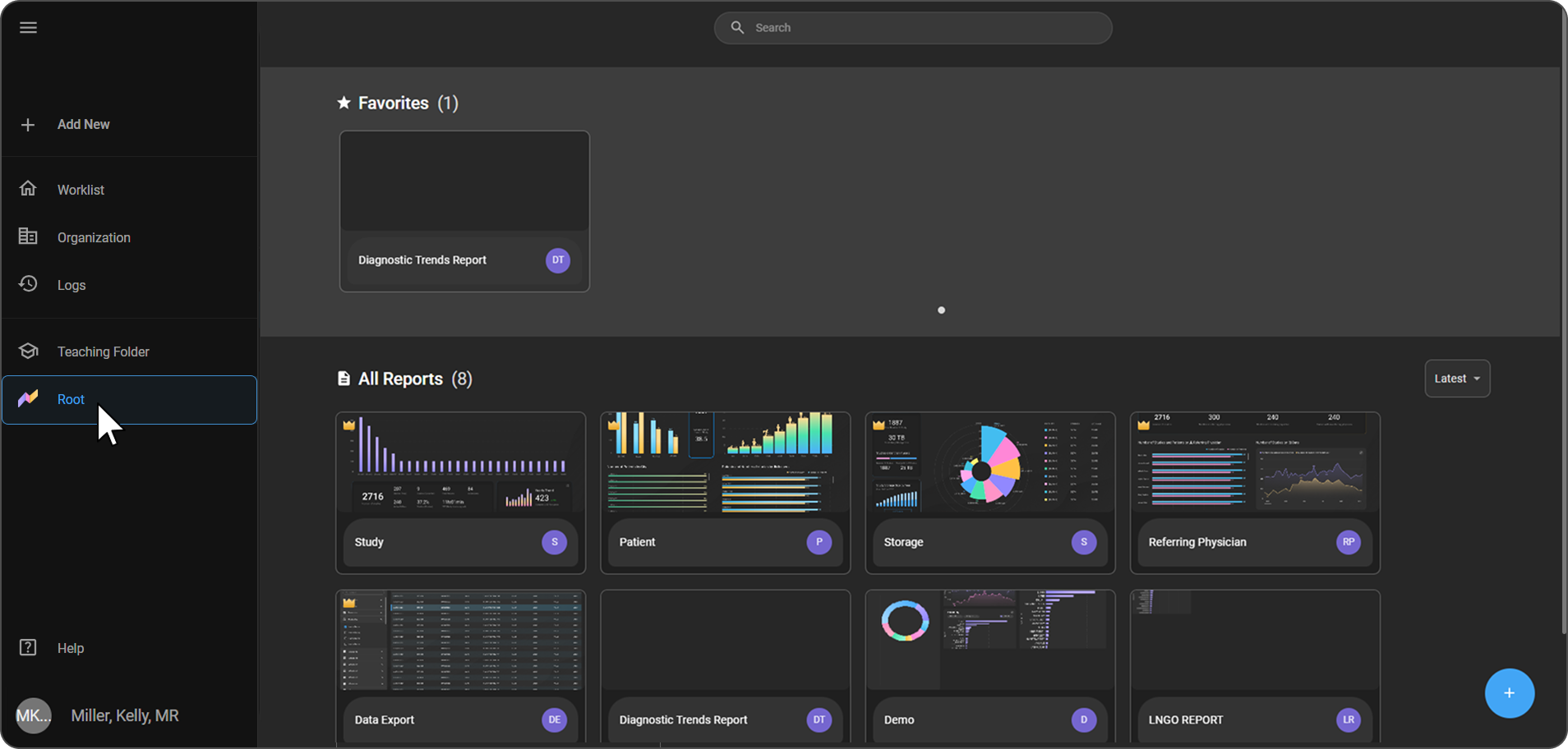
Expected result: The Root homepage opens. It shows every report you're authorized to access.
Tip: To see the menu names next to the icons, click the menu icon (three lines) at the top of the left sidebar.
What's on the Root homepage
| Element | What it does |
|---|---|
| Favorites (n) | Shows the reports you've marked as favorites, for quick access. It appears at the top of the homepage only when you have at least one favorite. The number shows how many favorites you have. |
| All Reports (n) | Shows every report available to you. Each report is a card with a visual preview and a title. The number shows how many reports you have. |
| Sort list | Sorts All Reports. It's at the top right of the section, and its options are Latest, A to Z, and Z to A. |
| + button | Creates a new report. It's the blue button at the bottom right of the homepage. Hover over it to see Create New Report. |
Tip: If you have more favorites than fit in one row, use the dots below the Favorites section to move between them.
To sort your reports or mark favorites, see Organize your report list. To create a report, see Create a Report.
Understand Premium and Custom reports
Root has two types of reports:
| Type | Who creates it | What you can do with it |
|---|---|---|
| Premium reports | Curated by RamSoft. Each one is marked with a gold crown icon. | Premium reports are available to all users whose role includes the View Premium Reports permission. They're read-only, so you can't modify or delete them. |
| Custom reports | Created by users in your organization. | The owner can edit, copy, share, or delete the report. People it's shared with can view it, and can edit it if they have Can edit access. |
The gold crown icon appears at the top left of the report card's thumbnail.
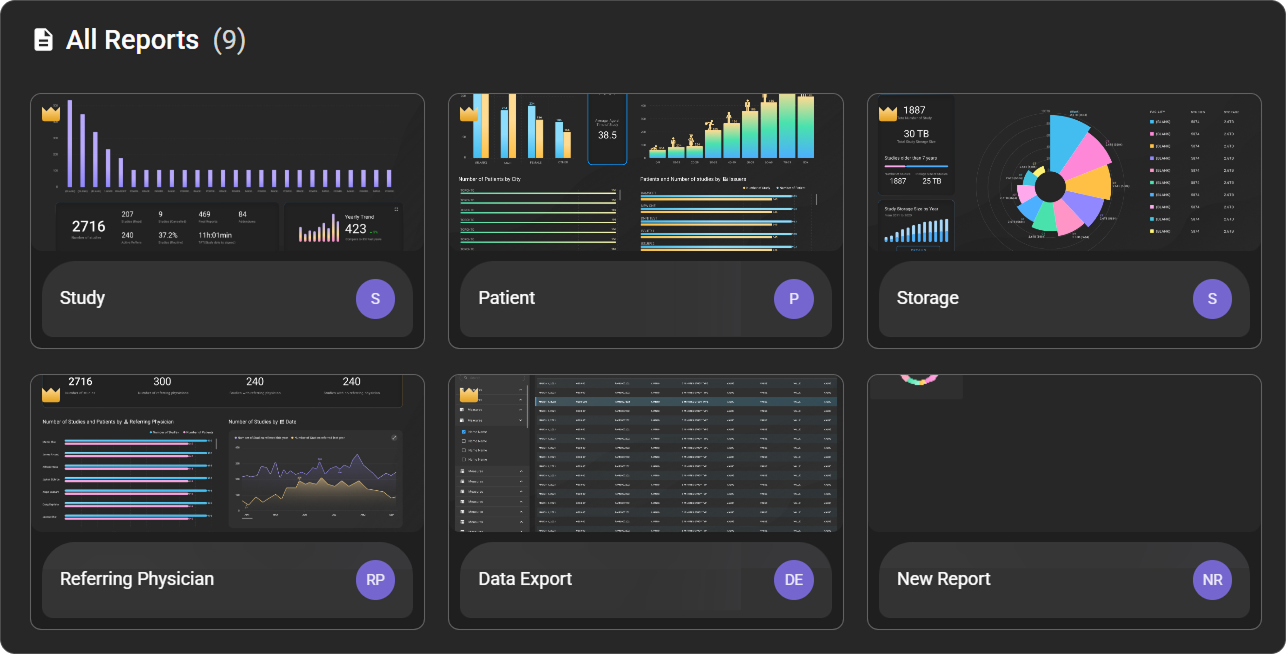
To learn what each Premium report shows, see Use Premium Reports.
Use the report card icons
When you hover over a Custom report card, these icons appear:
|
|
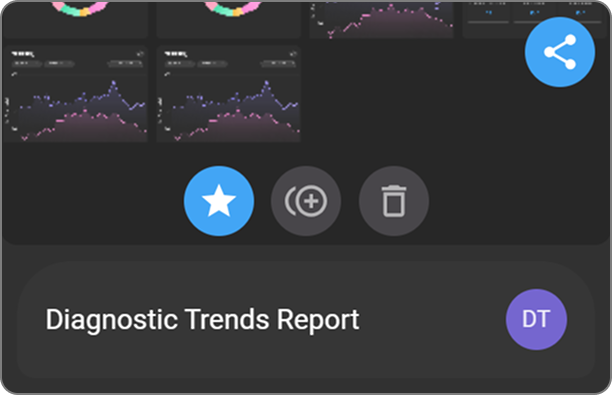
Note: Premium report cards don't show these icons. Premium reports are read-only by design.
Note: On a Custom report that someone else owns and has shared with you, only the Favorite icon appears. Only the report's owner can copy, share, or delete it from the card.
For step-by-step instructions, see Copy a report, Delete a report, and Share a Report.
What you can do next
- Use Premium Reports: Explore ready-made reports and export your data. See Use Premium Reports.
- Create a Report: Build your own report from charts, cards, and tables. See Create a Report.
- Focus on the data you need: Filter, limit, group, and sort your data. See Filter and Customize Report Data.
- Manage your reports: Open, edit, favorite, copy, export, and delete reports. See Open, Edit, and Organize Your Reports.
- Collaborate: Share reports with users, organizations, or a link. See Share a Report.
Troubleshooting
- I don't see Root in the left sidebar: Your role doesn't include Root access. Ask your administrator to check your role. See User access control and roles.
- I can open Root, but I don't see any Premium reports: Your role doesn't include the View Premium Reports permission. Ask your administrator.
- I can't create or edit reports: Your role doesn't include the Create/Edit Reports permission. Ask your administrator.
- I can't find a report someone told me about: The homepage shows only reports you're authorized to access. Ask the report's owner to share it with you. See Share a Report.
- I want a report showing turnaround time, RVUs, or physician and referring doctor breakdowns: See this troubleshooting entry.
- A report returns zero rows for a specific date range, but works for "All Time": See this troubleshooting entry.
- Exported or displayed fields show blank, null, or unexpected values: See this troubleshooting entry.
For all known issues, browse Troubleshooting & FAQs.
Related articles
- Use Premium Reports: Open the ready-made reports and export your data.
- Create a Report: Build a Custom report with the visual builder.
- Filter and Customize Report Data: Filter, limit, group, and sort your data.
- Open, Edit, and Organize Your Reports: Manage, export, and delete reports.
- Share a Report: Share reports with users, organizations, or a link.
- User access control and roles: Give a role access to Root.
- Add users and assign roles: Assign a role to a user.
- Understanding your organization hierarchy: Learn how organizations relate to each other.