
Product: 'Signed Report' Trigger in Workflow Automation (WFA)

· 2 min read

Overview​

We are pleased to announce the Signed Report Trigger under the Operations Trigger Type in Workflow Automation (WFA). This new trigger automates post-report actions (e.g., distribution, notifications) immediately after a diagnostic report is finalized, effectively eliminating delays caused by asynchronous DICOM processing. This mainly improves support for customers who are using external reporting solutions, while adding more granular control over other report creation scenarios.
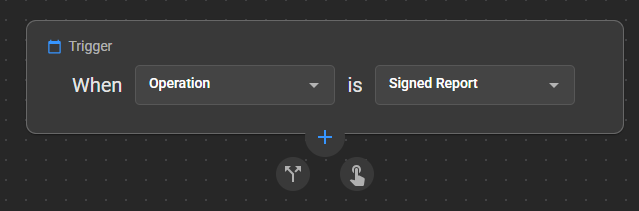
Signed Trigger

What's New​

Trigger Activation Scenarios​

What changed:​

The Signed Report Trigger could be activated when any of the following occurs:

  1. A diagnostic report is uploaded as a final report via the Document Viewer (DV) GUI.
  2. A report is received in OmegaAI through HL7 or FHIR integrations.
  3. A Structured Report is ingested via DICOM ingestion through OmegaAI Link.
  4. A final report (DICOM encapsulated) imported using the Import Feature.
  5. A final report is created or saved in OmegaAI’s Document Viewer (DV), including Signed Amendments.

Note: Ensure that you add the appropriate conditions after the trigger to prevent the final sign-off from being activated when not required.

Benefit:​

Workflow Automation allows you to automate processes and tasks, increasing efficiency and reducing manual intervention. With the Signed Report Trigger, we’re taking another step toward streamlining your reporting workflow.

Important Notes​

• It is recommended to configure appropriate conditions with the trigger to avoid unintended execution • Original workflow execution depends on report finalization events across supported ingestion methods • Particularly beneficial for environments using external reporting solutions • Ensure conditions are configured to prevent unnecessary trigger activation

Where to Find It​

Navigation path in the application:

Organization → Details → Workflow Automation → Create/Edit Workflow → Trigger Type: Operations → Signed Report

Updated Help Articles​

Workflow Automation.

Welcome

· 3 min read

Dear OmegaAI Users,

We are thrilled to announce the launch of our brand-new OmegaAI User Guide! This comprehensive resource is designed to help you navigate and maximize the powerful features of OmegaAI, our cutting-edge cloud-based SaaS solution for medical imaging practices and enterprise healthcare organizations.

Why a New User Guide?​

At OmegaAI, we are committed to providing our users with the best possible experience. Our new user guide reflects this commitment by offering a more structured, detailed, and user-friendly resource to support you in your daily operations. Whether you are a new user or a seasoned professional, our guide is here to assist you every step of the way.

What's Inside?​

The OmegaAI User Guide is a one-stop resource that covers all aspects of our platform. Here are some of the key sections you will find:

Getting Started​

For new users, this section provides a step-by-step introduction to OmegaAI. From setting up your account to navigating the dashboard, you’ll find everything you need to get up and running quickly.

Document Management and Diagnostic Reporting​

Explore in-depth guides on managing documents and generating diagnostic reports. This section includes detailed instructions, screenshots, and tips to help you make the most of these features.

Image Viewer​

Learn how to use our zero-footprint diagnostic image viewer, which allows you to view and analyze medical images efficiently and effectively.

Discover how to use OmegaAI's all-in-one search module, including remote DICOM search capabilities, to find the information you need quickly.

Communication and Organization Tools​

Optimize your workflows with our communication and organization tools, which include logs and organization configurations.

Workflow Automation​

Understand how to use OmegaAI’s visual workflow automation designer to streamline your processes and improve efficiency.

info

How to Access the User Guide?

Accessing the new OmegaAI User Guide is simple. You can directly visit the URL https://help.omegaai.com or click on the ‘Help’ option located in the lower part of the left navigation bar in your OmegaAI account.

Thank You!​

We want to extend our sincere gratitude to all our users for your continued support and feedback. It is your dedication and insights that drive us to innovate and improve. We are excited for you to explore the new OmegaAI User Guide and look forward to hearing your feedback.

Thank you for being a part of the OmegaAI community!