Product: RIS Procedure Codes & Order Sets

· 2 min read

Overview​

This release introduces enhancements to RIS Procedure Codes and Order Sets in OmegaAI, aimed at improving usability, simplifying management, and maintaining data integrity across scheduling and study workflows.

What’s New​

1. Improved Interface for Procedure Codes and Order Sets​

What changed:​

The Procedure Codes and Order Sets pages have been redesigned with a cleaner and more intuitive layout for easier navigation and configuration.

Benefit:​

Users can locate and manage procedure configurations more efficiently, reducing the time required for daily administrative tasks.

2. Simplified Management​

What changed:​

Users can now easily create, edit, and filter Procedure Codes and Order Sets directly from the RIS Settings interface.

Benefit:​

This improves workflow efficiency and simplifies management of frequently used procedure configurations.

3. Safeguards for In-Use Items​

What changed:​

Procedure Codes or Order Sets that are already associated with existing studies cannot be deleted.

Benefit:​

This safeguard prevents accidental data loss while allowing administrators to deactivate items that are no longer required.

Important Notes​

  • Procedure Codes or Order Sets currently used in studies cannot be removed.
  • Administrators can deactivate them instead to maintain data integrity.

Where to Find It​

Navigation path in the application:

Admin → Organization → Open Organization → RIS → Procedure Codes / Order Sets

Use these sections to create, edit, and manage Procedure Codes and Order Sets for the selected organization.

Updated Help Articles​

These improvements make managing procedure codes and order sets more reliable and user-friendly, helping you maintain accurate and consistent study data.
Product: Scheduler Enhancements

· 2 min read

Overview​

This release introduces enhancements to the OmegaAI Scheduler, focused on improving scheduling accuracy, usability, and workflow efficiency.

What’s New​

1. Time Display During Drag and Drop​

What changed:​

When dragging a study from the worklist to the scheduler, the exact time slot is displayed within each cell.

Benefit:​

This provides clearer visibility when selecting appointment times and reduces scheduling errors.

2. Modality Mismatch Indicator​

What changed:​

A validation indicator appears when there is a mismatch between the study modality and the healthcare service modality.

Benefit:​

This helps prevent incorrect scheduling and ensures studies are assigned to appropriate services.

3. Customizable Scheduler Time Intervals​

What changed:​

Scheduler intervals can now be configured to 5, 10, 15, or 30 minutes, providing greater flexibility to match scheduling needs.

Benefit:​

Administrators can adjust scheduling intervals to match clinical workflow requirements.

4. Quick View Options​

What changed:​

Users can quickly switch between Day, Week, and Month views directly from the scheduler interface.

Benefit:​

This improves visibility and allows faster navigation between scheduling views.

5. Reorder Healthcare Services with Drag and Drop​

What changed:​

Healthcare services can now be reordered using drag-and-drop within the scheduler.

Benefit:​

Users can personalize the scheduler layout for easier access to frequently used services.

Important Notes​

  • These enhancements will be rolled out within one week of the release.

Where to Find It​

Main Navigation → Calendar (right-side navigation bar)

Click the Calendar icon to open the Scheduler, where you can view and manage appointments, resources, and healthcare services.

Updated Help Articles​

log in here

Product: Organization Affiliation

· 2 min read

Overview​

This release introduces the Organization Affiliation feature in OmegaAI, focused on enabling secure, role-based access across organizations while maintaining auditability and interoperability standards.

We’re excited to introduce the Organization Affiliation feature — enabling secure, role-based access for users from participating organizations to studies in a primary organization.

What’s New​

1. One-Way Access Control​

What changed:​

Affiliate organization users can access studies from the primary (main) organization, but access is not reciprocal.

Benefit:​

Ensures controlled data sharing while maintaining strict access boundaries.

2. Role Mapping Between Organizations​

What changed:​

Roles can be mapped between organizations, or a single role can be applied to all affiliate users.

Benefit:​

Provides flexibility in access control and simplifies user permission management.

3. Affiliated Users View​

What changed:​

A dedicated view allows administrators to manage and track users from affiliated organizations who have access.

Benefit:​

Improves visibility and simplifies administration of cross-organization users.

4. Audit-Backed Management​

What changed:​

Affiliations can be created, edited, or removed with full audit traceability.

Benefit:​

Enhances compliance, accountability, and governance.

5. FHIR-Compliant Architecture​

What changed:​

The feature is built on the FHIR OrganizationAffiliation resource.

Benefit:​

Ensures interoperability and alignment with healthcare data standards.

Important Notes​

  • Access is strictly one-way from affiliate organizations to the primary organization.
  • Role mapping must be configured to ensure appropriate access levels.
  • All affiliation actions are audit-tracked.
  • The feature aligns with FHIR standards for interoperability.

Where to Find It​

You can access Organization Affiliation settings within the administrative configuration module.

Navigation path in the application: Admin → Organization Settings → Organization Affiliation

Updated Help Articles​

Organization Affiliation

Product: Improved Report Amendment Workflow

· 2 min read

Overview​

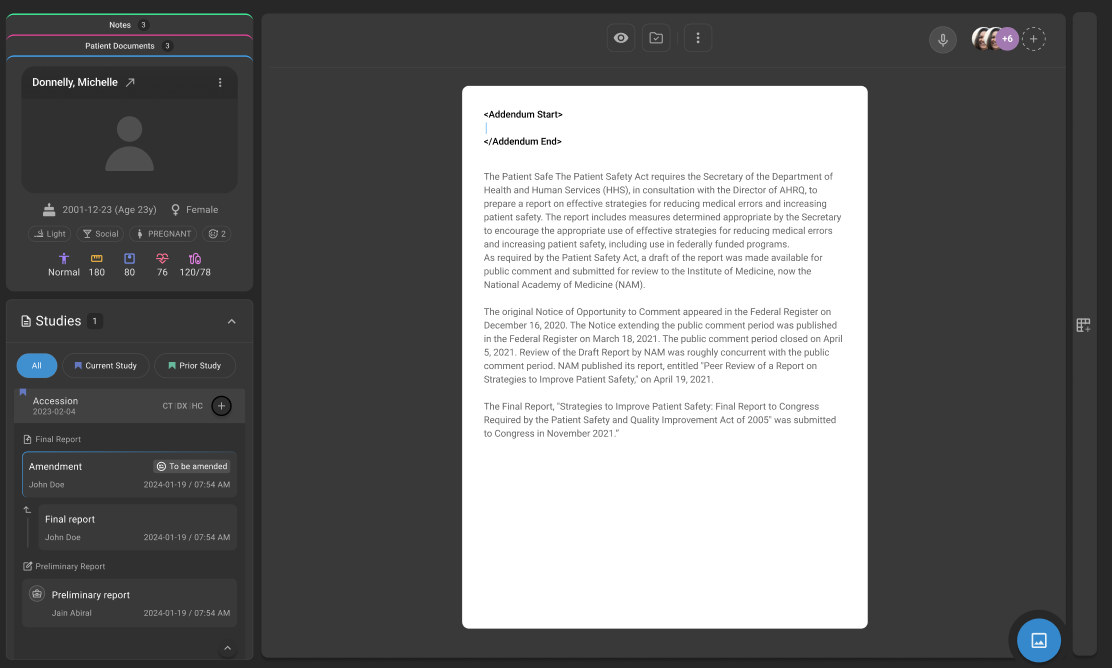
This release introduces updates to the Report Amendment Workflow in OmegaAI to improve usability, efficiency, and system reliability. This updated workflow introduces a safer, role-based workflow where all amendments are made on a copy of the signed report, with auto-inserted addendum tags and clear approval flow between users. Amendment phase-2

What’s New​

1. Amendment on Report Copy with Addendum Tagging​

What changed:​

Amendments are now performed on a copy of the signed report instead of modifying the original. Addendum Start and End tags are automatically inserted during the amendment process.

Benefit:​

Ensures audit integrity by preserving the original report while clearly identifying amended content through automatic tagging—improving clarity, standardization, and overall amendment handling.

2. Role-Based Amendment Workflow​

What changed:​

Amendment actions are now controlled based on user roles:

  • Reading Physician can amend directly
  • Non-Reading Physician can request amendments
  • Report Owner can accept or reject amendment requests
Benefit:​

Introduces better control and accountability, ensuring only authorized users can perform or approve amendments.

3. Structured Status Transitions​

What changed:​

Defined status transitions have been introduced:

  • Signed → To Be Amended (when amendment starts)
  • To Be Amended → Signed or Amended (after completion, based on workflow configuration)
Benefit:​

Provides clear visibility into amendment stages, improving tracking and workflow transparency.

Important Notes​

  • Original signed reports cannot be edited directly; all amendments are performed on a copy
  • Addendum tags are system-generated and cannot be manually removed
  • Amendment actions are restricted based on user roles and permissions
  • Final status may vary based on configured workflow (Signed or Amended)

Where to Find It​

Navigation path in the application:

Image Viewer → Embedded Document Viewer (EDV) → Final Report → Amend

Amendment status transitions (Signed → To Be Amended → Signed/Amended) are reflected within the report workflow in EDV.

Updated Help Articles​

Amendment workflow

Product: Revamped Info Pages

· 2 min read

Overview​

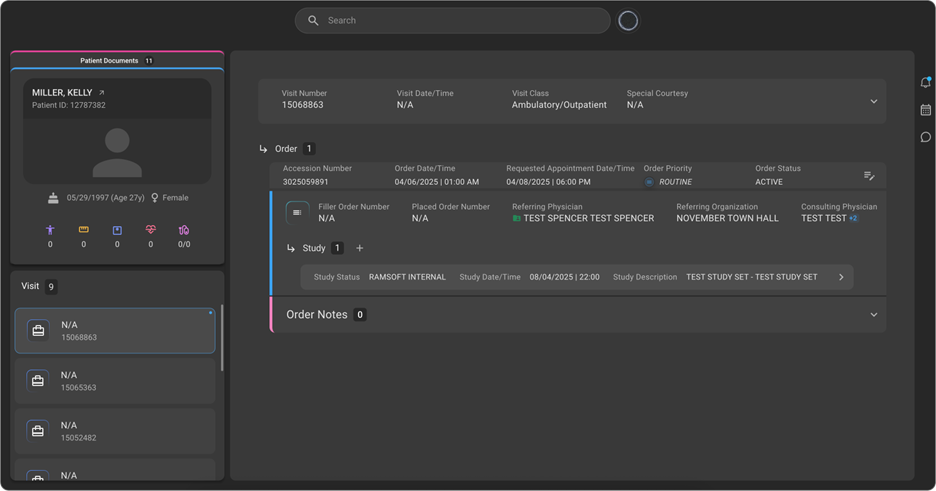
This release introduces updates to the Info Pages in OmegaAI, focused on improving usability, navigation, and structured access to patient-related information. With this enhancement, the interface has been streamlined, and accessibility to Order and Study details has been improved. A new Visit section has been introduced to organize Orders, establishing a clear hierarchy: Visit → Order → Study.

Revamped Info Pages

What’s New​

1. Introduction of Visit Hierarchy​

What changed:​

A new Visit section has been introduced, restructuring the data hierarchy to: Visit → Order → Study.

Benefit:​

Provides a more logical, clinically aligned organisation of patient data, improving navigation and context.

2. Visit Section with Enhanced Details​

What changed:​

The Visit section now includes comprehensive details, including Visit Date/Time, Patient Vitals, Accident Notes, Special Courtesy, and Visit Class (e.g., Inpatient, Outpatient).

Benefit:​

Offers a centralized view of patient visit information, reducing the need to navigate across multiple sections.

3. Reassign Orders Across Patients​

What changed:​

Users can now reassign an Order to a different patient by searching and selecting the correct patient. All associated studies and orders can be moved from one patient to another.

Benefit:​

Improves data accuracy and reduces administrative effort in correcting patient-order mismatches.

4. Improved Study Navigation​

What changed:​

Users can view all studies under an Order and access individual Study details by selecting study tiles.

Benefit:​

Simplifies access to study-level information and improves workflow efficiency.

5. Quick Access Panel on Study Page​

What changed:​

A Quick Access panel has been added to the Study page, providing direct access to Image Viewer, Document Viewer, Prior Authorization, and Post Charge actions.

Benefit:​

Reduces navigation steps and enables faster execution of key actions.

Important Notes​

  • The updated hierarchy (Visit → Order → Study) is now the standard structure across Info Pages.
  • Reassigning an Order will move all associated studies to the selected patient.
  • Existing workflows may require minor adaptation to align with the new navigation structure.

Where to Find It​

You can access the updated Visit, Order, and Study information from the Patient Info pages within OmegaAI.

Navigation path in the application: Patient → Info → Visit → Order → Study

Updated Help Articles​

New Info Pages.

Product: Revamped Patient Page

· 2 min read

Overview​

This release introduces updates to the Patient Page in OmegaAI, focused on improving usability, accessibility, and workflow efficiency.

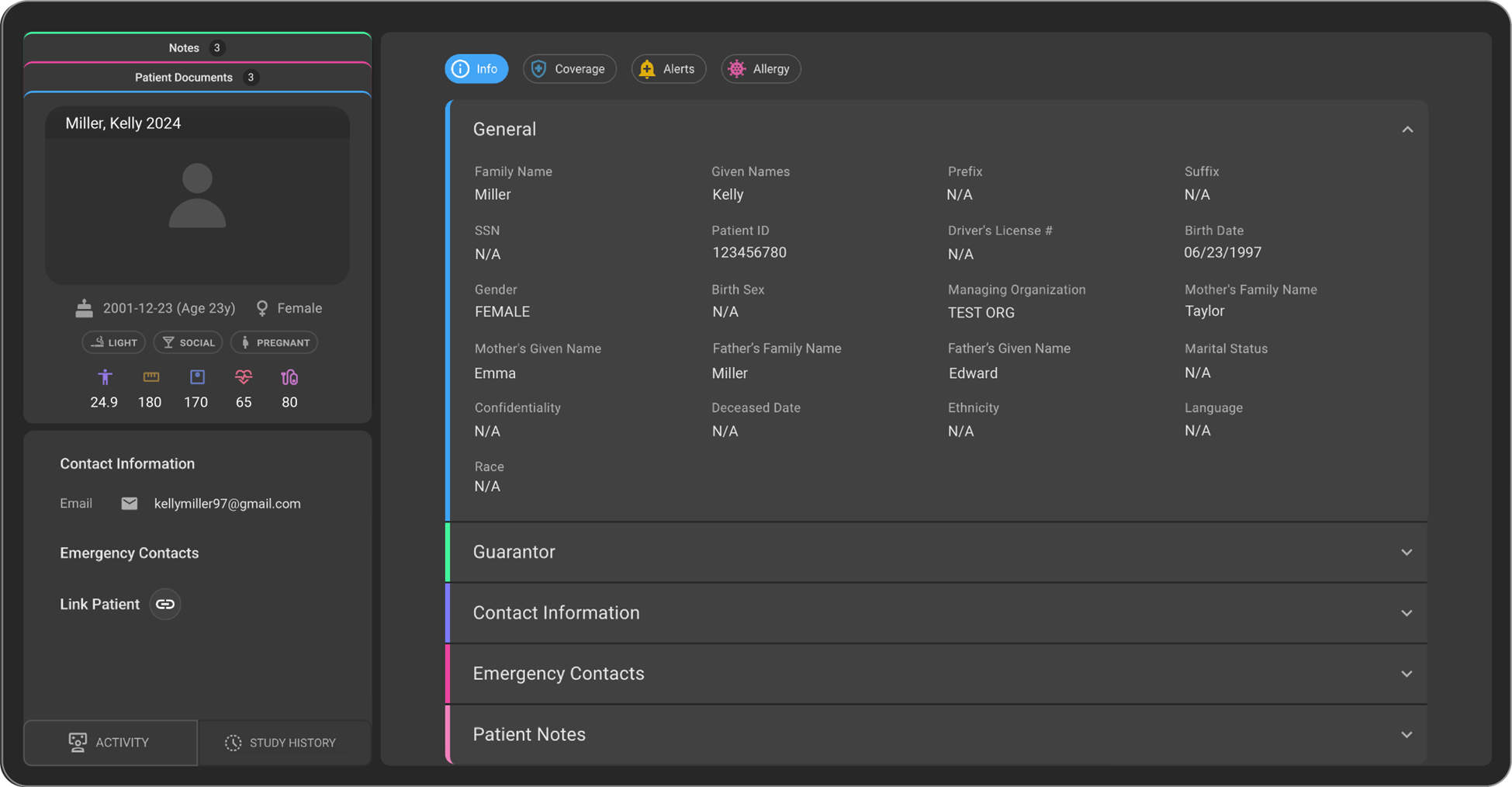
We are excited to announce the launch of the revamped Patient Page, crafted for a more intuitive and efficient user experience. This update brings enhanced accessibility, a streamlined interface, and new functionalities designed to optimize workflows.

Revamped Patient Page

What’s New​

1. General Section​

What changed:​

All basic patient details such as Name, Gender, Date of Birth (DOB), SSN, etc., are available within this section.

Benefit:​

Provides a centralized view of essential patient information for quick and easy access.

2. Guarantor Section​

What changed:​

Users can now add guarantor details for the patient. A guarantor refers to a person who agrees to repay a patient’s medical bills if the patient is unable to pay.

Benefit:​

Ensures financial responsibility details are captured and managed efficiently.

3. Contact Information Section​

What changed:​

The Contact Information section has been moved under the Info tab for easier accessibility. Users can add, edit, and delete multiple email IDs and contact numbers.

Benefit:​

Improves accessibility and flexibility in managing patient contact details.

4. Emergency Contacts Section​

What changed:​

Users can add emergency contact details for the patient.

Benefit:​

Ensures critical contact information is readily available when needed.

5. Patient Notes Section​

What changed:​

Users can add, edit, and delete multiple patient notes.

Benefit:​

Supports better documentation and tracking of patient-specific information.

6. Coverage Section​

What changed:​

Users can add, edit, and delete multiple coverage details for the patient.

Benefit:​

Enables comprehensive management of patient coverage information.

Important Notes​

  • The Patient Page interface has been streamlined for improved usability.
  • Multiple entries are supported for Contact Information, Patient Notes, and Coverage.
  • Contact Information is now accessible under the Info tab.
  • Guarantor details can be added for financial responsibility tracking.

Where to Find It​

You can access the revamped Patient Page from the Patient module in OmegaAI.

Navigation path in the application: Patient → Info → Patient Page

Updated Help Articles​

Managing Patient Record

Product: Avoid Concurrent Reporting (Report access indicator)

· 2 min read

Overview​

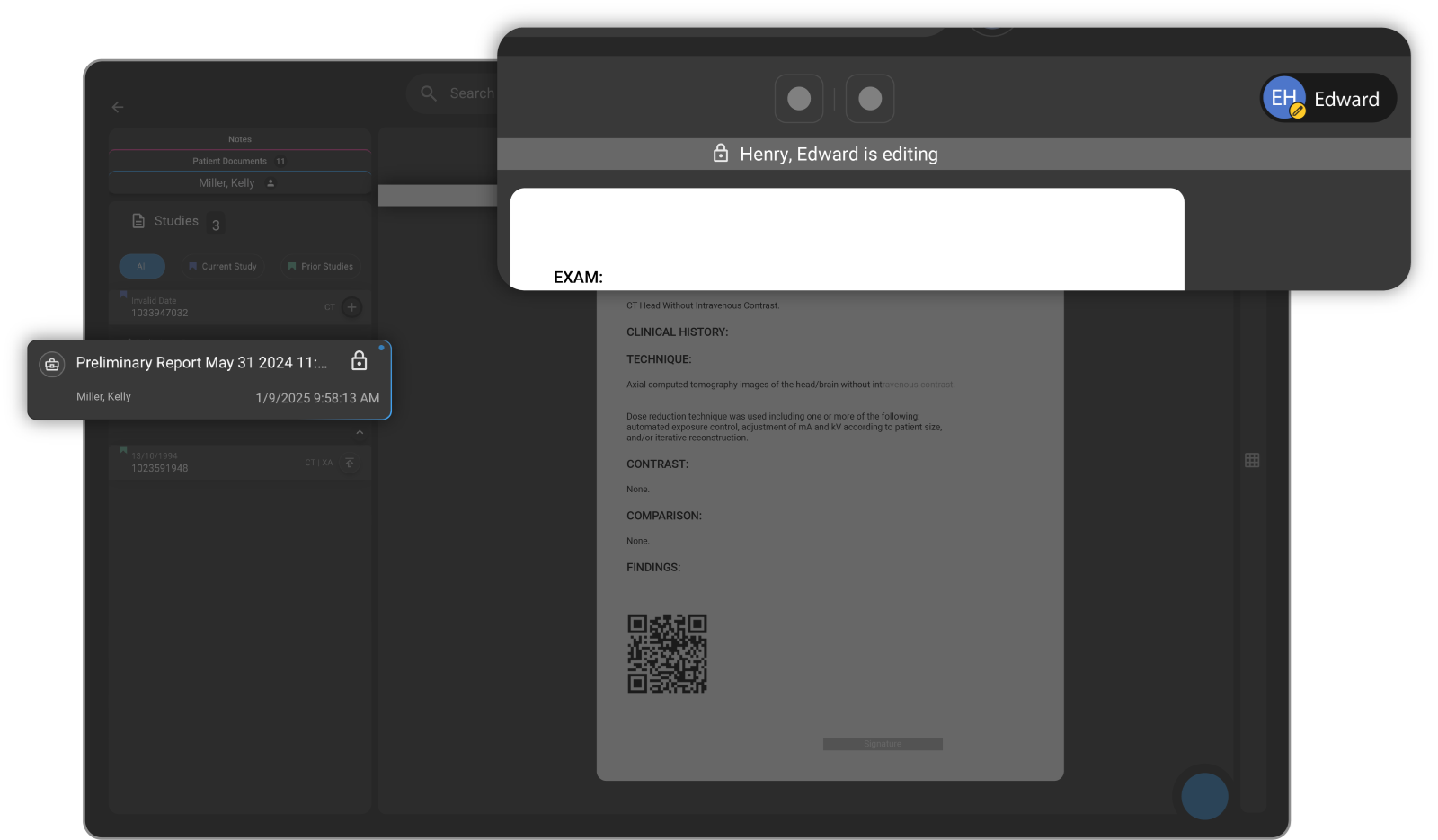
This release introduces the Avoid Concurrent Reporting feature in OmegaAI, designed to improve visibility and coordination among radiologists and clinicians by providing real-time insight into report access and activity. The Report Access Indicator shows when a report is actively being viewed or edited, helping reduce conflicts, confusion, and duplicate efforts when multiple users access the same report.

Avoid Concurrent Reporting

What's New​

1. Real-Time Report Access Indicator​

What changed:​

A Report Access Indicator is now displayed to show when a report is actively being viewed or edited by another user.

Benefit:​

Improves visibility into report access, helping users avoid conflicts and duplicate work.

2. Improved Collaboration and Handoff​

What changed:​

Users can now see who is currently accessing a report in real time.

Benefit:​

Prevents accidental overwrites and enables smoother coordination between radiologists and clinicians.

3. Enhanced Workflow Efficiency​

What changed:​

Real-time visibility reduces the need for manual checks or communication to determine report availability.

Benefit:​

Streamlines workflows by minimizing delays and uncertainty around report status.

Important Notes​

  • The indicator reflects real-time access and may change dynamically as users open or close reports

  • Visibility of user activity depends on system permissions and access levels

  • This feature does not restrict access but provides awareness to avoid concurrent edits

Where to Find It​

Navigation path in the application: Image Viewer → Embedded Document Viewer (EDV) → Document Explorer

The Report Access Indicator is displayed alongside reports to show active viewing or editing status.

Updated Help Articles​

Report access indicator

Product: Self-Scheduling with Order Set Selection

· 2 min read

Overview​

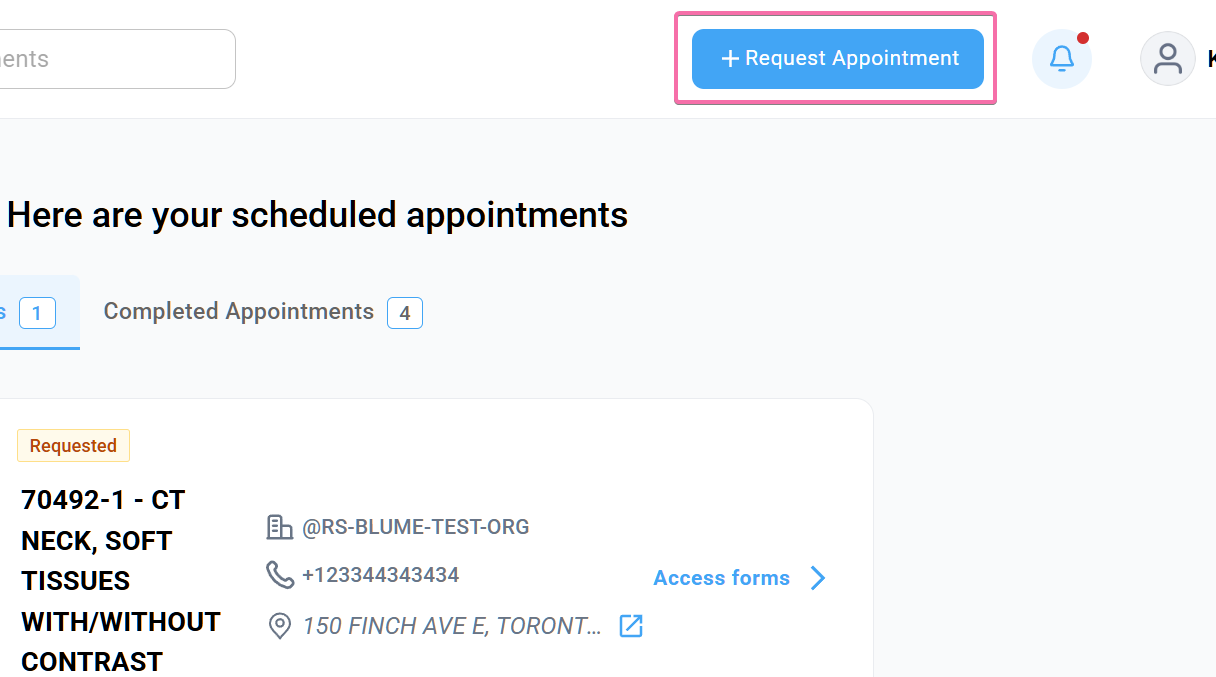
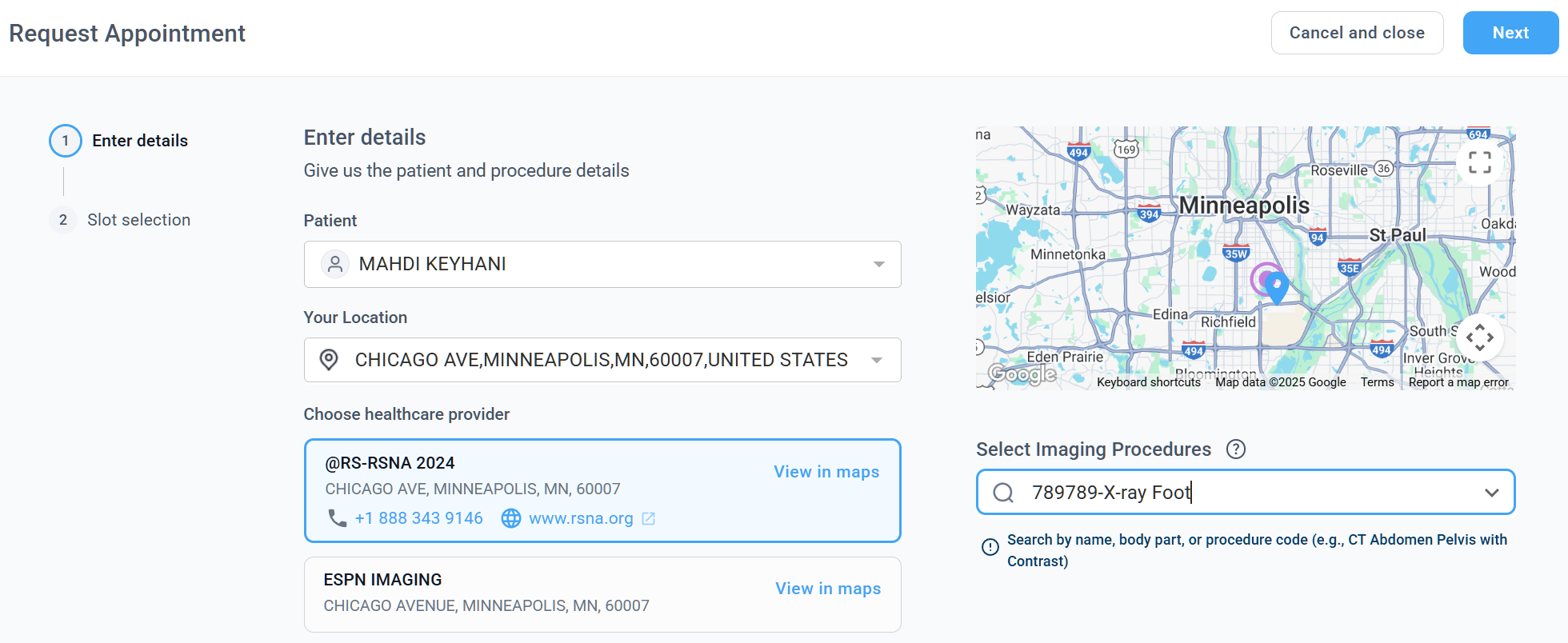
This release introduces updates to Self-Scheduling in Blume to improve usability, efficiency, and system reliability. Patients can now directly book appointments from Blume using integrated Order Set Selection.

What’s New​

1. Self-Scheduling with Order Set Selection​

What changed:​

Patients can now book appointments by selecting the appropriate Order Set directly within Blume, aligning with the existing self-scheduling workflow.

Benefit:​

Simplifies the booking process and ensures patients select the correct procedures, improving scheduling accuracy and reducing manual intervention.

Step 1:

Self Scheduling Orderset Selection

Step 2:

Document Upload and Integrated Forms

2. Customizable Order Sets for Imaging Centres​

What changed:​

Imaging centers can fully customize order sets, defining available healthcare resources, specific naming conventions, and self-scheduling capabilities tailored to their individual practice needs.

Benefit:​

Provides flexibility to tailor scheduling workflows based on organizational needs, improving control and operational efficiency.

3. Organization Auto-Fill for Returning Patients​

What changed:​

If a patient has previously booked an appointment, the associated organization details are automatically pre-filled during scheduling.

Benefit:​

Reduces repetitive data entry and speeds up the appointment booking process for returning patients.

Important Notes​

  • Order Set availability for self-scheduling depends on the configuration by the imaging centre
  • Patients can only select from configured and enabled Order Sets
  • Patient Document Upload: Patients can continue to upload required documents (e.g., physician orders) within Blume; these remain accessible to imaging centres for review
  • Integrated Patient Forms: Imaging centres can continue to enable forms for patients during the appointment request process to ensure complete and accurate information collection

Where to Find It​

Navigation path in the application: Blume Patient Portal → Search Imaging Procedure → Request New Appointment

Updated Help Articles​

Search Imaging Procedure & Requesting New Appointment.

Product: Patient chart

· 2 min read

Overview​

This release introduces the Patient Chart feature in OmegaAI, focused on improving access to patient information and documents while enhancing workflow efficiency.

We are excited to announce the new Patient Chart feature, designed to streamline patient information and provide quick, centralized access to patient documents.

Patient chart

What’s New​

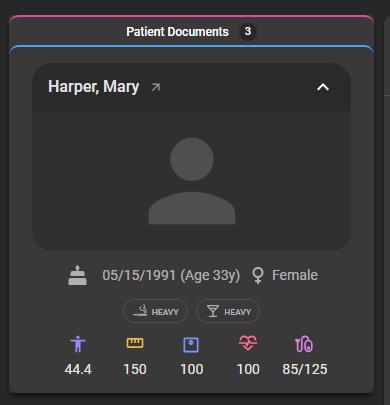
1. Patient Card​

What changed:​

Displays high-level patient details and vital statistics for quick reference.

Benefit:​

Provides immediate access to key patient information, reducing navigation time.

2. Patient Documents Management​

What changed:​

Users can view all uploaded documents (from patients or technicians) and upload new documents directly. The patient’s registration form is also accessible without additional navigation.

Benefit:​

Centralizes document access and simplifies document management workflows.

3. Split View for Documents​

What changed:​

Users can view patient documents side by side within a split view interface.

Benefit:​

Enhances efficiency by enabling simultaneous document review.

Important Notes​

  • Patient documents include uploads from both patients and technicians.
  • Registration forms are accessible directly within the Patient Chart.
  • Split view is available for improved document comparison and review.

Where to Find It​

You can access the Patient Chart from the Patient module in OmegaAI.

Navigation path in the application: Patient → Patient Chart

Updated Help Articles

Patient chart

Product: Voice Command Search Enhancement

· 2 min read

Overview​

This release introduces updates to Voice Commands in OmegaAI to improve usability, efficiency, and system reliability.

Voice Commands Search

What's New​

1. Voice Command Search Functionality​

What changed:​

Users can now search for specific voice commands instead of manually browsing through the full list.

Benefit:​

Reduces time spent locating commands and improves efficiency by enabling quick access to required actions. Enhances command discoverability and streamlines workflow efficiency through search-enabled navigation.

2. Direct Command Editing​

What changed:​

Users can edit voice commands directly after locating them through search.

Benefit:​

Provides greater flexibility and control, allowing quick updates without navigating through multiple steps.

3. Improved Accessibility and Navigation​

What changed:​

Enhancements to the voice command interface improve accessibility and ease of use.

Benefit:​

Enables faster interaction with tools and commands, resulting in a more seamless and intuitive workflow.

Important Notes​

  • Search results are limited to available configured voice commands

  • Editing permissions may depend on user roles and system configuration

Where to Find It​

Navigation path in the application:

Image Viewer → Embedded Document Viewer (EDV) → 3-dot menu / Voice Command option

Voice Commands can be accessed within the Document Viewer toolbar/menu, where users can view, search, and manage configured voice commands.

Updated Help Articles​

Voice Recognition and Voice Command Features