4 posts tagged with "updates"

View all tags

Product Update: Client-Facing UI – Apps Removal

Β· 2 min read

Overview​

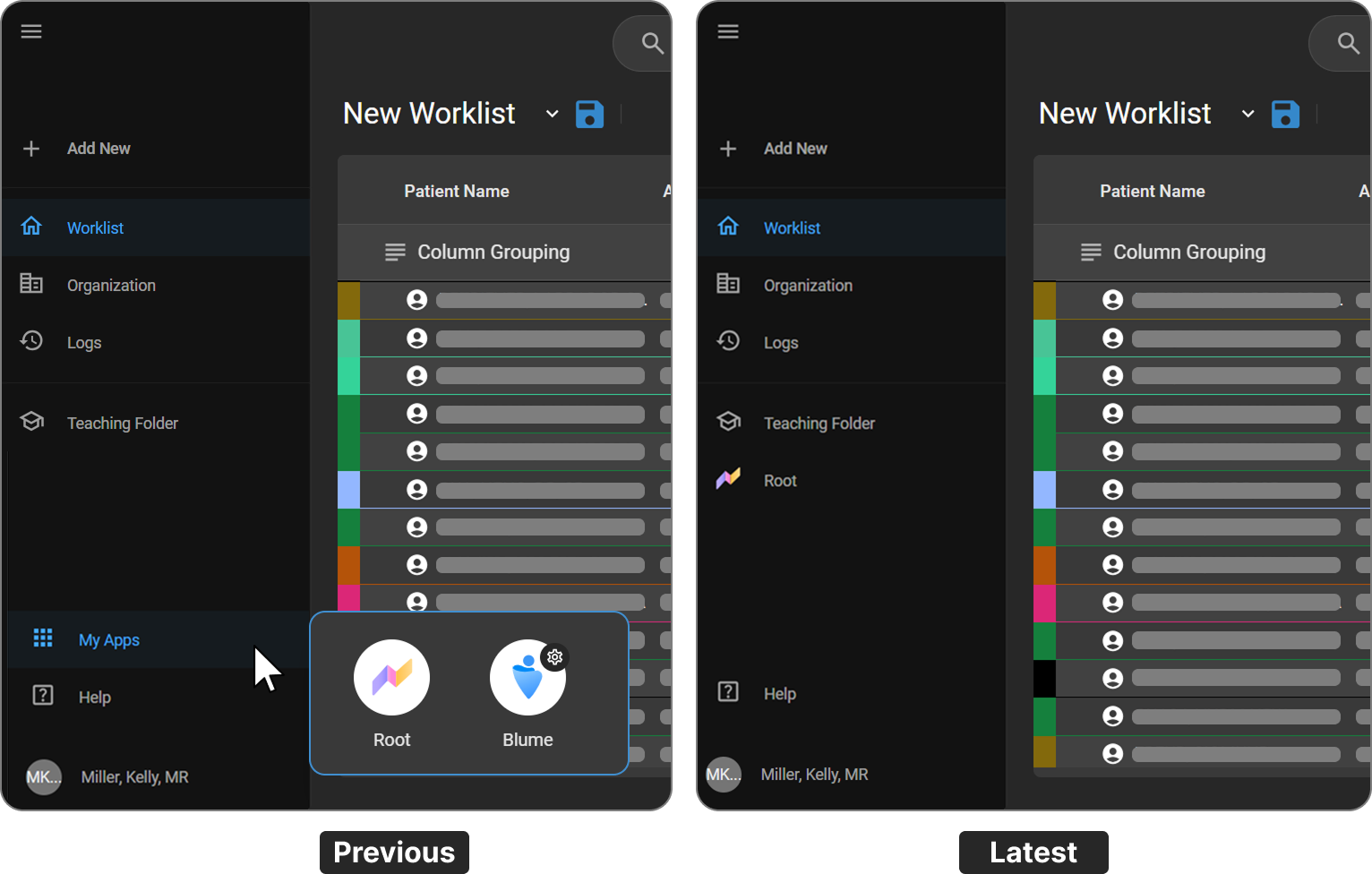
This release introduces a streamlined navigation experience by removing the My Apps application switcher. Previously, users accessed Root analytics and Blume forms through a separate app-selection interface. These are now directly integrated into the main navigation, reducing clicks and improving workflow efficiency.

What's New​

1. Removal of the My Apps Switcher​

What changed:​

The My Apps menu β€” which previously required users to select between the Root and Blume app tiles β€” has been removed from the interface.

Benefit:​

Eliminates an extra navigation step, giving users faster and more direct access to key areas of the application.
apps removal


2. Root Added as a Direct Navigation Item​

What changed:​

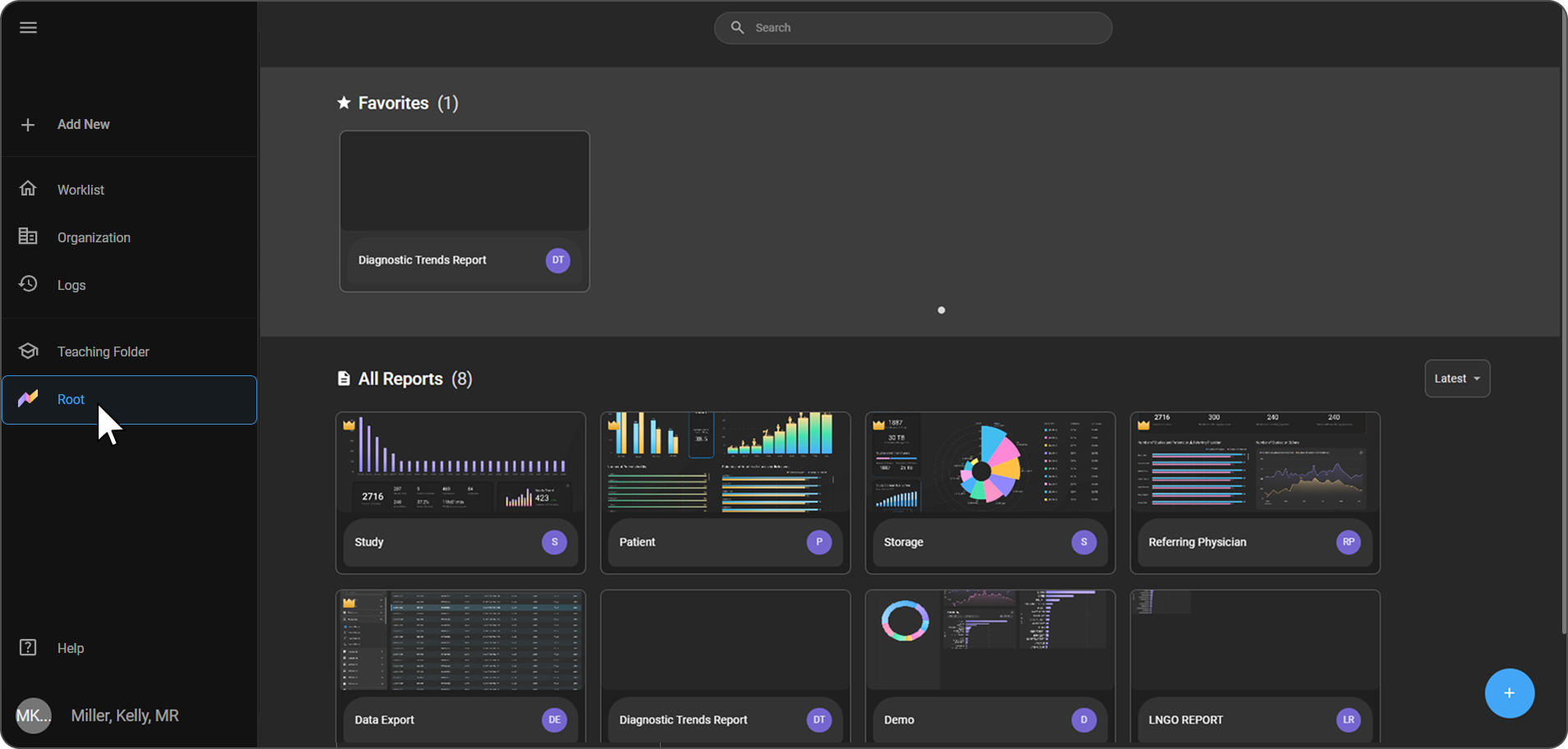
Root is now accessible as a dedicated item in the left sidebar navigation, alongside Worklist, Organization, Logs, and Teaching Folder.

Benefit:​

Users can navigate directly to Root analytics without going through an intermediate app-selection screen.
apps removal


3. Blume Forms Accessed via Organization​

What changed:​

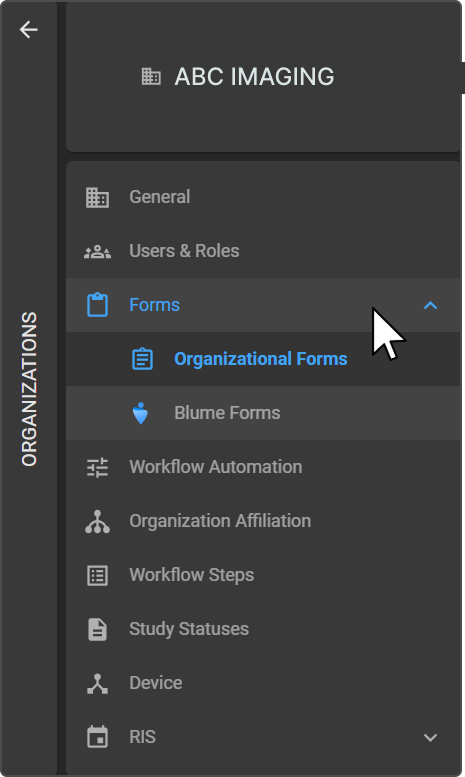
Blume Forms configuration is now accessed through the Organization settings panel under Forms β†’ Blume Forms, rather than through a separate Blume app tile.

Benefit:​

Centralizes Blume configuration within the Organization settings, making it easier to manage alongside other organizational settings.
apps removal


Important Notes​

  • The My Apps app switcher is no longer available in the interface.
  • Users previously accessing Root analytics via the app tile should now use the Root item in the left sidebar.
  • Blume Forms configuration options remain fully available under Organization β†’ Forms β†’ Blume Forms.

Where to Find It​

FeatureNew Navigation Path
Root AnalyticsLeft Sidebar β†’ Root
Blume FormsLeft Sidebar β†’ Organization β†’ Forms β†’ Blume Forms

Updated Help Articles​

Product Update: Workflow Automation Email Templates (Blume)

Β· 2 min read

Overview​

We’re pleased to announce enhancements to the Email Template feature in Workflow Automation (WFA) for Blume. These updates are designed to simplify template management, improve usability, and provide greater flexibility in patient communications.

What's New​

1. Enhanced User Experience​

What changed:​

The Email Template interface has been redesigned with a structured grid-based layout, replacing the earlier tile view.

Benefit:​

Templates are easier to browse, compare, and manage within workflows.

2. Improved Template Management​

What changed:​

Users can now seamlessly create, edit, activate, deactivate, and reuse email templates directly within a workflow.

Benefit:​

Templates support common patient communication scenarios such as appointment confirmations, cancellations, invitations, and notifications β€” all within a single workflow.

3. Flexible Customization & Branding​

What changed:​

Email content is fully customizable using an enhanced editor, allowing organizations to format text and adjust layouts.

Benefit:​

Organizations can align emails with their branding and communication standards for a consistent patient experience.

4. Reply-To Email Configuration​

What changed:​

A configurable Reply-To option allows organizations to route patient responses to a preferred email address.

Benefit:​

When disabled, system-managed footer messaging clearly indicates that the email is auto-generated, ensuring transparent patient communication.

Important Notes​

  • Templates can be activated or deactivated but cannot be permanently deleted once in use within a workflow.
  • The Reply-To configuration is optional; when not set, the system auto-generated disclaimer appears in the email footer.
  • Email Templates are specific to the Blume platform within Workflow Automation and are not shared across other OmegaAI modules.

Where to Find It​

Navigation path in the application:

Workflow Automation β†’ Email Templates

Updated Help Articles​

Email Templates in Workflow Automation (Blume)

Product Update: Patient chart

Β· 2 min read

Overview​

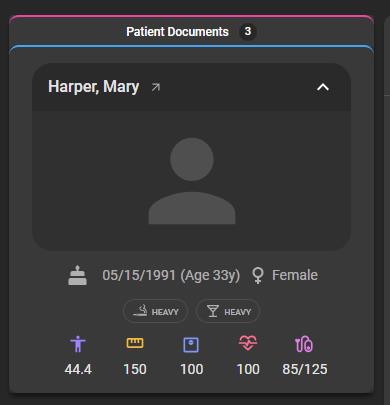
This release introduces the Patient Chart feature in OmegaAI, focused on improving access to patient information and documents while enhancing workflow efficiency.

We are excited to announce the new Patient Chart feature, designed to streamline patient information and provide quick, centralized access to patient documents.

Patient chart

What’s New​

1. Patient Card​

What changed:​

Displays high-level patient details and vital statistics for quick reference.

Benefit:​

Provides immediate access to key patient information, reducing navigation time.

2. Patient Documents Management​

What changed:​

Users can view all uploaded documents (from patients or technicians) and upload new documents directly. The patient’s registration form is also accessible without additional navigation.

Benefit:​

Centralizes document access and simplifies document management workflows.

3. Split View for Documents​

What changed:​

Users can view patient documents side by side within a split view interface.

Benefit:​

Enhances efficiency by enabling simultaneous document review.

Important Notes​

  • Patient documents include uploads from both patients and technicians.
  • Registration forms are accessible directly within the Patient Chart.
  • Split view is available for improved document comparison and review.

Where to Find It​

You can access the Patient Chart from the Patient module in OmegaAI.

Navigation path in the application: Patient β†’ Patient Chart

Updated Help Articles

Patient chart

Product Update: Voice Command Search Enhancement

Β· 2 min read

Overview​

This release introduces updates to Voice Commands in OmegaAI to improve usability, efficiency, and system reliability.

Voice Commands Search

What's New​

1. Voice Command Search Functionality​

What changed:​

Users can now search for specific voice commands instead of manually browsing through the full list.

Benefit:​

Reduces time spent locating commands and improves efficiency by enabling quick access to required actions. Enhances command discoverability and streamlines workflow efficiency through search-enabled navigation.

2. Direct Command Editing​

What changed:​

Users can edit voice commands directly after locating them through search.

Benefit:​

Provides greater flexibility and control, allowing quick updates without navigating through multiple steps.

3. Improved Accessibility and Navigation​

What changed:​

Enhancements to the voice command interface improve accessibility and ease of use.

Benefit:​

Enables faster interaction with tools and commands, resulting in a more seamless and intuitive workflow.

Important Notes​

  • Search results are limited to available configured voice commands

  • Editing permissions may depend on user roles and system configuration

Where to Find It​

Navigation path in the application:

Image Viewer β†’ Embedded Document Viewer (EDV) β†’ 3-dot menu / Voice Command option

Voice Commands can be accessed within the Document Viewer toolbar/menu, where users can view, search, and manage configured voice commands.

Updated Help Articles​

Voice Recognition and Voice Command Features